





Blackmagic Design lanza DaVinci Resolve Speed Editor
El nuevo teclado es ideal para trabajar con el módulo Montaje que ofrece una nueva generación de soluciones de edición mucho más rápidas.
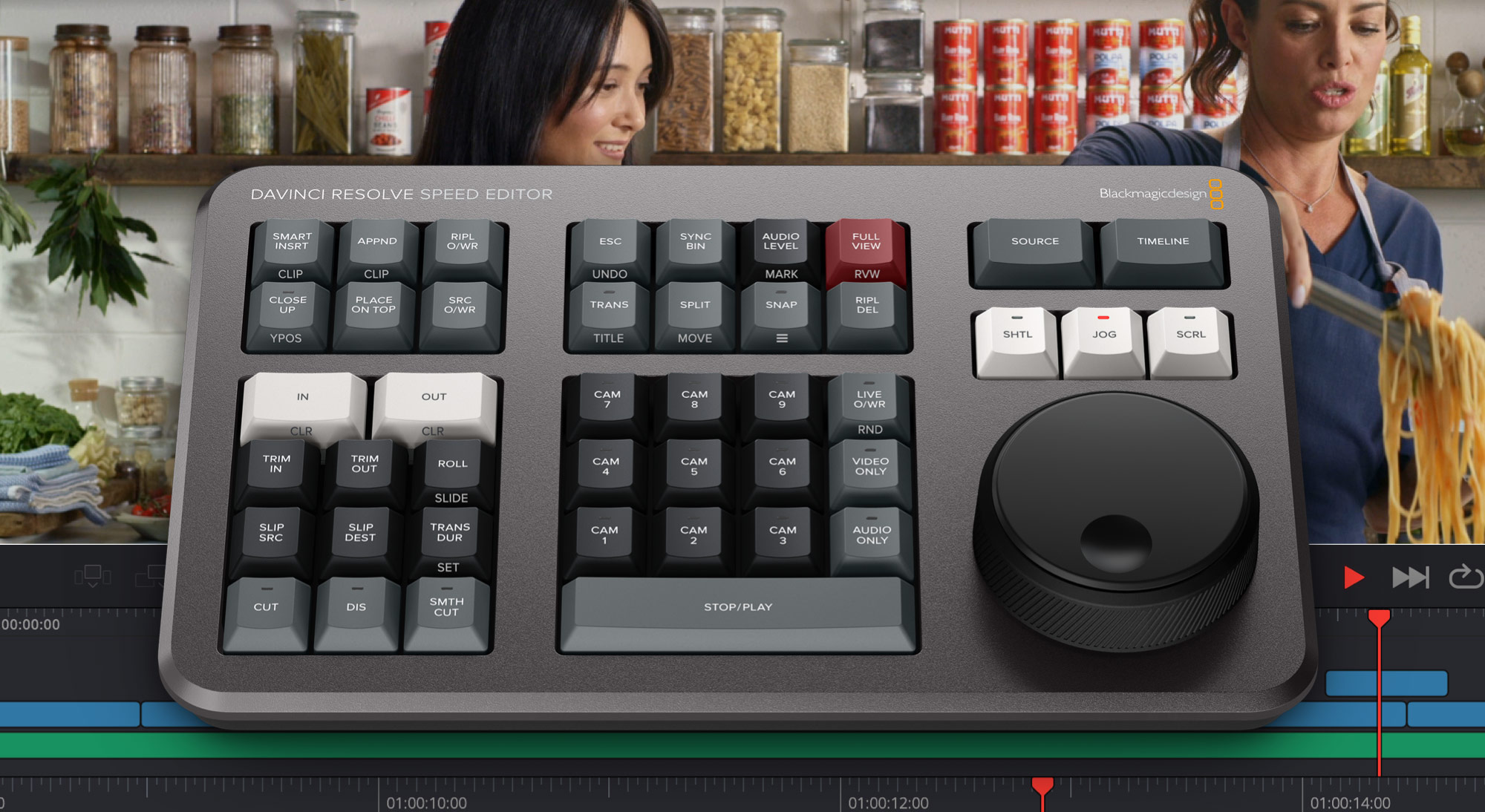
Blackmagic Design lanza el dispositivo DaVinci Resolve Speed Editor, un novedoso teclado ideal para trabajar con el módulo Montaje que ofrece una solución de edición extremadamente rápida, gracias a la integración de un soporte físico con el programa. Esto significa que los editores tienen la oportunidad de realizar sus tareas de un modo más veloz, ya que, al contrario de un mouse, dicho teclado cuenta con un control para cada función y permite realizar múltiples acciones simultáneamente. Además, por un tiempo limitado, los usuarios que adquieran DaVinci Resolve Studio a través de un distribuidor oficial recibirán un teclado DaVinci Resolve Speed Editor de manera gratuita.
En los programas de edición tradicionales, es preciso organizar miles de clips y arrastrarlos a la línea de tiempo constantemente para realizar cambios. Esto no brinda la rapidez necesaria para trabajar en proyectos tales como anuncios publicitarios, informativos, promociones y tutoriales. Sin embargo, los sistemas de edición lineal ofrecían la ventaja de poder simplemente avanzar o retroceder la cinta para ver las tomas. En tal sentido, ahora el módulo Montaje cuenta con una función denominada “modo de cinta“, que es el equivalente moderno de una videocinta. Basta con presionar la tecla respectiva y girar el mando de búsqueda para ver todas las imágenes. Además, el clip que se está visualizando se destaca en la bandeja, lo cual permite avanzar a la siguiente toma con mayor velocidad.
Marcar puntos de edición es la función utilizada con más frecuencia al editar. En este sentido, las teclas empleadas para tal fin son de gran tamaño y pueden ubicarse con facilidad. Esto es ideal, ya que permite usar la mano derecha para los controles de reproducción y la izquierda para marcar puntos de edición con la ayuda del mando giratorio de búsqueda. Luego, basta con extender los dedos para presionar las teclas y editar el material. Cabe destacar que los puntos de entrada y salida también pueden emplearse en el modo de cinta. Asimismo, presionando la tecla Esc, se ve el contenido de toda la bandeja.
Dado que editar con un teclado es diferente a hacerlo mediante un mouse, estas funciones han sido optimizadas para brindar una mayor velocidad. En tal sentido, el indicador inteligente determina automáticamente dónde realizar cambios en la línea de tiempo, evitando de esta forma la necesidad de marcar puntos de edición. Las teclas correspondientes se encuentran encima de las utilizadas para estos puntos, y es posible ubicarlas con facilidad. Además, al editar en el módulo Montaje, se brinda la posibilidad de permanecer en el modo de cinta, con el propósito de facilitar la búsqueda de contenidos. Esta dinámica de trabajo es mucho más rápida, ya que permite continuar añadiendo clips a la línea de tiempo.
El mando giratorio ofrece un modo de recorte increíblemente rápido y preciso, así como su gran tamaño facilita su uso. Por otra parte, es posible mantener presionadas las teclas de recorte al girarlo, usando la mano izquierda para escoger el modo de recorte y la derecha para realizar ajustes. Esto permite trabajar con gran rapidez, y el indicador inteligente en la línea de tiempo muestra quién está realizando los cambios. Basta con desplazarse a lo largo de esta y recortar cuando sea necesario. Es una manera totalmente innovadora de editar.
Agregar transitions mediante un programa de edición es lento, ya que hay que seleccionarlas y arrastrarlas a la línea de tiempo. Sin embargo, al usar el teclado, basta con presionar una tecla para activarlas o desactivarlas. Esto aporta una gran rapidez, ya que, al desplazarse por la línea de tiempo, el indicador inteligente mostrará el punto de edición afectado, con el propósito de que los usuarios puedan moverlo. Por otro lado, la tecla CUT permite eliminar el efecto fácilmente. Al presionar DIS, se añade una disolvencia con una duración predeterminada, mientras que al presionar SMTH CUT, se agrega un corte uniforme a fin de eliminar saltos en la imagen.
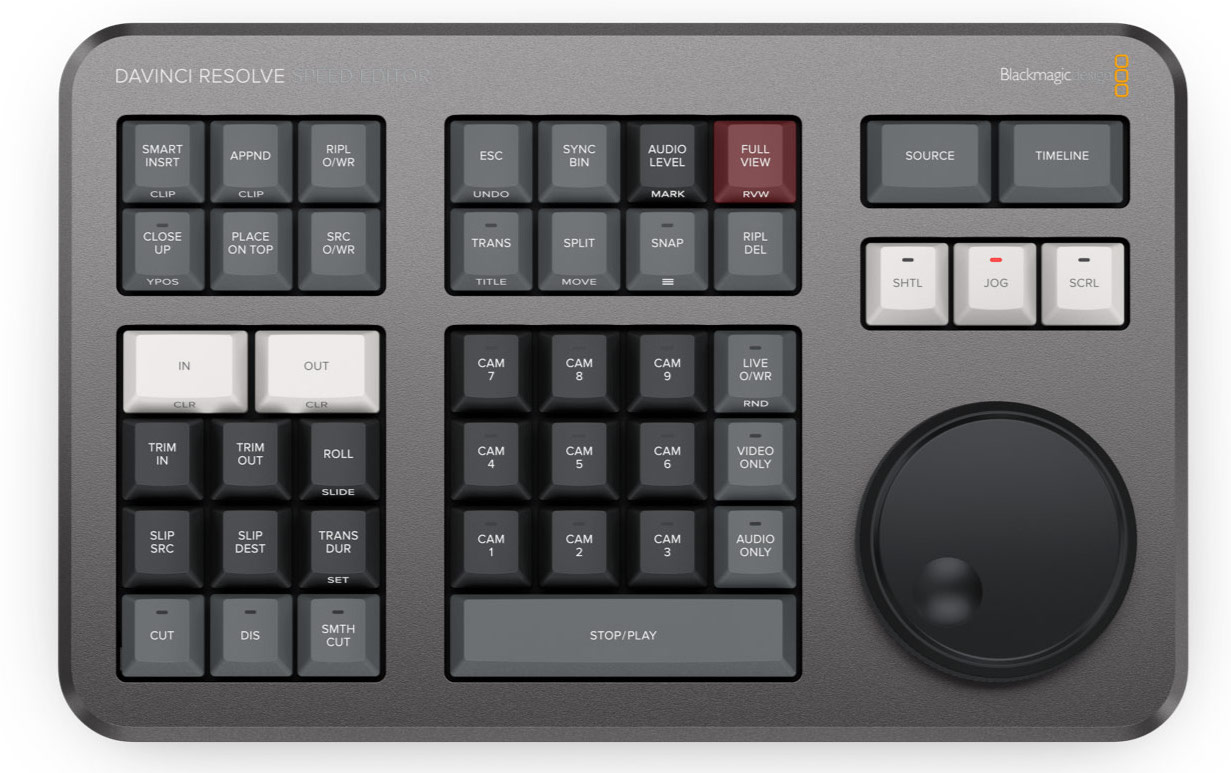
El modelo DaVinci Resolve Speed Editor presenta un compact and portable design, de manera que solo incluye las teclas esenciales para editar. Algunas de las teclas multifunción ni siquiera están disponibles en el modelo de mayor tamaño, mientras que otras permiten acceder a prestaciones adicionales manteniéndolas oprimidas o presionándolas dos veces. Esto brinda la posibilidad de reducir el número de teclas para brindar las mismas herramientas en un diseño portátil. Asimismo, la distribución de las mismas facilita su uso y ofrece la oportunidad de trabajar con mayor rapidez.
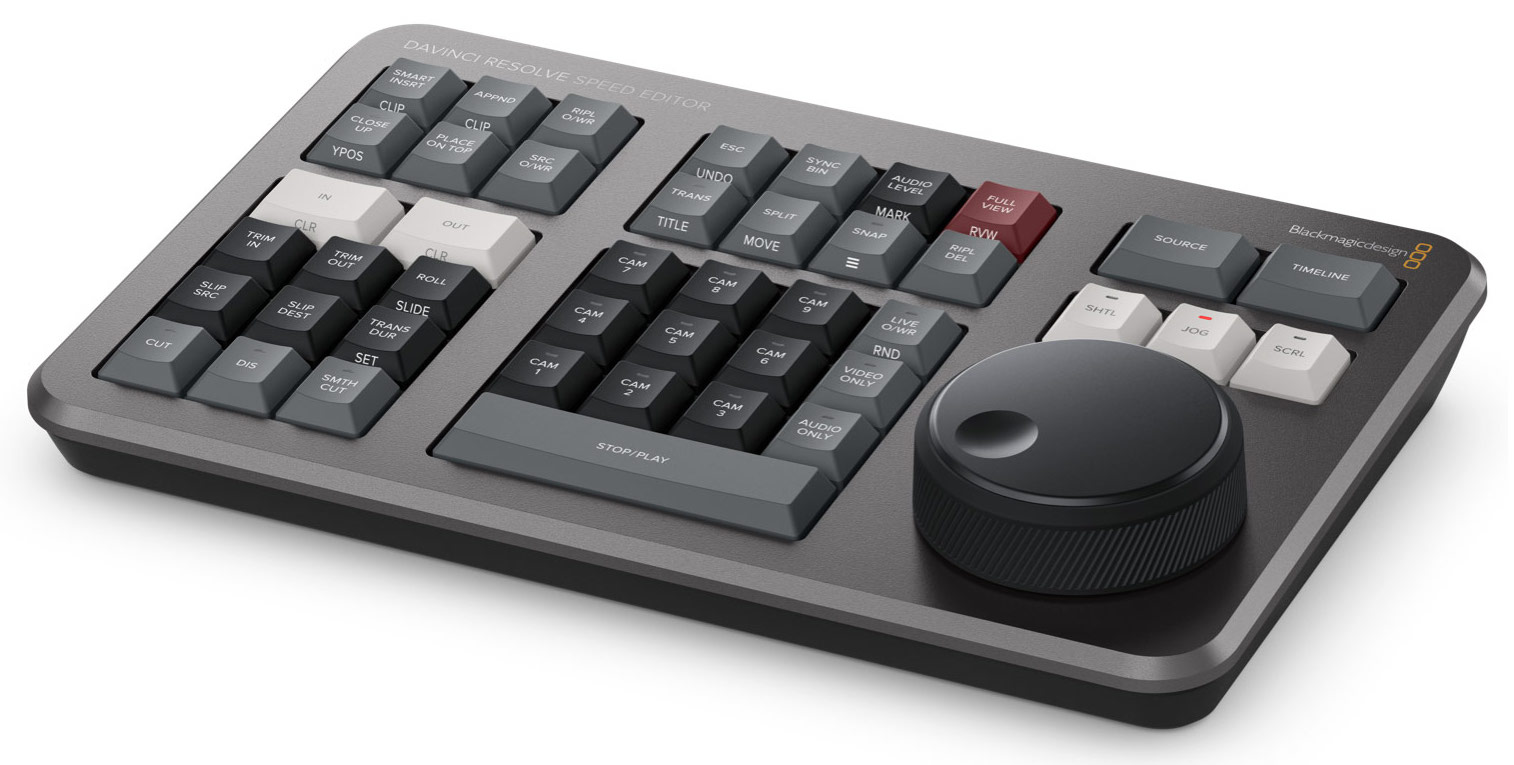
Teclas multifunción
La tecla Esc /Undo se encuentra en la esquina superior izquierda con el fin de poder ubicarla con facilidad, ya que es la más utilizada para cancelar o deshacer cambios. Por ejemplo, en la bandeja de sincronización, al seleccionar una cámara determinada, es posible volver a ver todos los ángulos presionando esta tecla. Al oprimirla dos veces, permite deshacer cualquier modificación.
La nueva bandeja de synchronization permite buscar distintos ángulos que coinciden con la toma seleccionada en la línea de tiempo. Esto brinda la posibilidad de encontrar cambios de plano mediante una interfaz familiar. A continuación, es posible usar las teclas correspondientes a cada cámara para escoger un ángulo diferente, o la tecla SRC O/WR para editar la imagen en la línea de tiempo.
La tecla Audio Level permite modificar rápidamente el volumen de un clip manteniéndola presionada y girando el mando de búsqueda. Esto brinda la oportunidad de trabajar con mayor rapidez. Al oprimirla dos veces, es posible añadir un marcador, y si luego se mantiene presionada, cambiar su color.
La tecla Full View es roja, lo cual permite encontrarla rápidamente y presionarla para ver una imagen en pantalla completa. Esto es ideal al realizar presentaciones para clientes. Al oprimirla dos veces, se inicia la reproducción antes del cambio más reciente.
La tecla Trans cumple una función similar a la de las teclas Cut y Smth Cut. Sin embargo, permite añadir cualquiera de las transiciones disponibles en DaVinci Resolve. Al mantenerla presionada, aparecerá un panel con las distintas opciones para seleccionar una de ellas.
La tecla Split/Move permite dividir el clip según la posición del cabezal. Si este se encuentra sobre un clip dividido, al presionarla, se eliminará el corte. Cuando se mantiene presionada, es posible emplear el mando de búsqueda para mover el clip en la línea de tiempo.
Al presionar la tecla Snap, es posible activar la herramienta «Atraer». Esta funciona de manera un tanto distinta en el teclado, realizando una pausa momentánea en los puntos de edición durante la reproducción. Al mantenerla presionada, esta tecla brinda la posibilidad de ajustar el tamaño del visor.
La tecla Ripl Del permite eliminar el clip que se encuentra en la posición del cabezal sin dejar un espacio vacío en la línea de tiempo. Es ideal para borrar las partes de una toma que no se desean incluir en la versión final. Asimismo, reduce la duración de la línea de tiempo.
Las teclas con los números de cámara permiten seleccionar una unidad cuando se usa la bandeja de sincronización del módulo Montaje. Al presionar una de ellas y girar el mando de búsqueda simultáneamente, las imágenes provenientes de la cámara elegida se agregan a la línea de tiempo al instante a medida que la reproducción avanza. También se brinda la oportunidad de activar esta función mediante la tecla Live O/WR. En este caso, las teclas se iluminan, y es posible seleccionar las cámaras al igual que en un mezclador. Las imágenes captadas por cada una se verán simultáneamente, lo cual facilita los cambios de plano. Por su parte, las teclas Video Only y Audio Only brindan un mayor control al editar.
El modelo DaVinci Resolve Speed Editor incluye tecnología Bluetooth que permite utilizarlo sin cables, incluso junto con un teclado común. Esto es ideal al usar equipos informáticos portátiles. Por otra parte, también es posible conectarlo a través del puerto USB, que además brinda la oportunidad de cargar la batería interna. Gracias a estas prestaciones, el teclado es sumamente portátil.
Grant Petty, director ejecutivo de Blackmagic Design, asegura que “en nuestra opinión, este es un producto realmente extraordinario, ya que ofrece un resultado sin igual en las dinámicas de trabajo. Hasta ahora, los programas de edición habían sido diseñados para emplear un mouse, a pesar de que esto enlentece el proceso, ya que cada una de las ediciones que se lleva a cabo requiere varios clics. Ahora, gracias al diseño combinado del módulo Montaje y el teclado DaVinci Resolve Speed Editor, ofrecemos una generación totalmente nueva de dinámicas de trabajo dedicadas a la edición. Es muy rápido y divertido de usar.
Main features
- Modo de cinta para buscar clips más rápido.
- Botones para puntos de entrada y salida al recortar.
- Nuevos modos de edición inteligente.
- Botones que permiten recortar en tiempo real usando el mando giratorio de búsqueda.
- Botones para cambiar los tipos de transición.
- Mando giratorio de búsqueda integrado
- Teclado numérico para código de tiempo.
Did you like this article?
Subscribe to our NEWSLETTER and you won't miss anything.
Related articles
 '1 For All' relies on Blackmagic Design and DaVinci Resolve cameras
 'Gaey Wa'r', graded with Blackmagic Design's DaVinci Resolve Studio
 The sound of ‘Magnificent Madness’, post-produced with DaVinci Resolve (Blackmagic Design)
 Vanessa Taylor etalona 'The Protégé' con DaVinci Resolve Studio (Blackmagic Design)
 Blackmagic Design updates DaVinci Resolve to version 17.3
 ‘Chaogtu with Sarula’, edited with DaVinci Resolve by Blackmagic Design
 Blackmagic Design updates DaVinci Resolve with new Fairlight tools
 Blackmagic Design challenges the traditional way of working with DaVinci Resolve 16
 Blackmagic Design introduces more than thirty new functions in DaVinci Resolve 15.2
 Blackmagic Design launches DaVinci Resolve 15 with powerful collaborative tools
 Blackmagic Design announces availability of DaVinci Resolve 14
 Blackmagic Design Enhances DaVinci Resolve with CinemaDNG File Processing
 Blackmagic Design Releases Most Significant DaVinci Resolve Update Yet
 Blackmagic Design announces the release of DaVinci Resolve 10