





Blackmagic, going for the replay market with DaVinci Resolve Replay
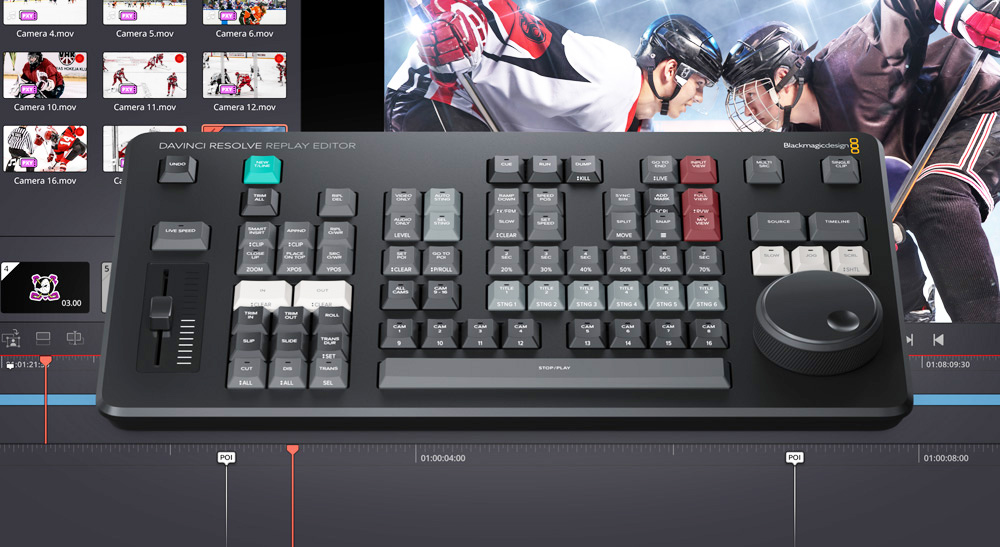
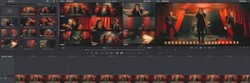
El nuevo sistema de repeticiones DaVinci Resolve Replay de Blackmagic Design, basado en la unión de las unidades HyperDeck con el software de postproducción DaVinci Resolve, busca ofrecer un nuevo enfoque al ámbito de los replays de todo tipo de producciones en directo.
DaVinci Resolve Replay utiliza varias unidades HyperDeck para grabar en dispositivos de almacenamiento compartido que, a su vez, se conectan a DaVinci Resolve, el cual se emplea como motor de reproducción. Este flujo de trabajo presentado en NAB 2024 permite aprovechar las extraordinarias herramientas que el programa ofrece en materia de edición, colaboración, efectos visuales, etalonaje y posproducción de audio. A su vez, las repeticiones pueden convertirse en promociones, secuencias de apertura o publicaciones en redes sociales.
A través de DaVinci Resolve Replay los operadores tienen la posibilidad de importar ángulos de cámara interesantes desde una línea de tiempo para editarlos, etalonarlos y aplicarles efectos visuales. Dicho material luego se puede compartir en social networks “en cuestión de segundos”. Además, con Blackmagic Cloud, es posible emplear más de un equipo informático con DaVinci Resolve para un mismo trabajo.
El lanzamiento de DaVinci Resolve Replay llega acompañado del teclado DaVinci Resolve Replay Editor, un panel de control físico que combina prestaciones para repeticiones y edición multicámara. El sistema permite que el mismo operador trabaje en repeticiones mientras las importa en la línea de tiempo mediante las herramientas de edición del teclado. Con respecto a su diseño, Blackmagic ha cuidado que los botones estén debidamente separados con el propósito de que los usuarios los puedan ubicar de forma intuitiva. El panel se puede conectar mediante Bluetooth o un puerto USB, y su batería interna dura horas.
Grant Petty, director ejecutivo de Blackmagic Design, valora de esta forma el nuevo workflow de repeticiones de DaVinci Resolve: “En el transcurso de los años, hemos seguido trabajando para agregar herramientas destinadas a las emisoras en DaVinci Resolve, tales como los efectos Fusion y el audio Fairlight. Queremos que estas organizaciones tengan acceso a las mismas prestaciones de alta gama que la industria del cine digital, así que ahora hemos incorporado una nueva manera de crear repeticiones en directo. Es posible que sea lo más alocado que hemos agregado a DaVinci Resolve; no veo la hora de apreciar la creatividad con la que las emisoras usaran Blackmagic Replay, a fin de generar repeticiones en directo al instante”.
 Cómo funciona DaVinci Resolve Replay
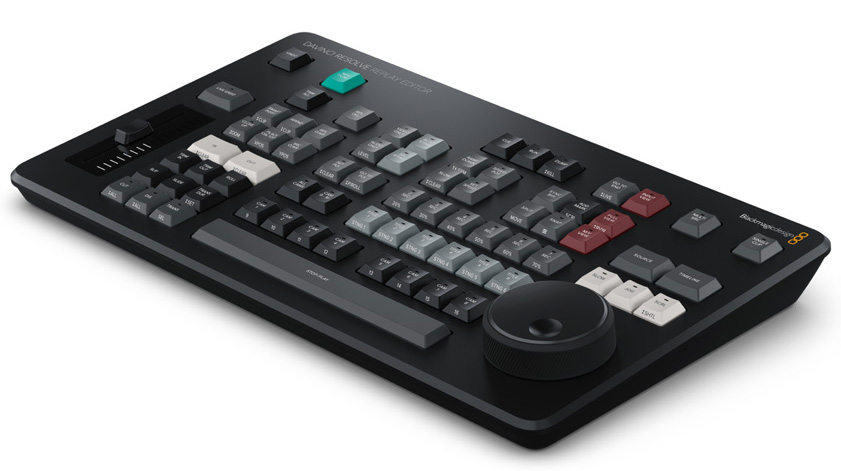
DaVinci Resolve permite que los operadores realicen repeticiones en unos pocos pasos. Mediante la pulsación de un botón de punto de interés, los usuarios pueden ser capaces de crear automáticamente una repetición al mirar la señal entrante. Asimismo, al usar este botón, los operadores pueden cambiar del modo de visualización de las fuentes al de reproducción, en donde es posible observar los distintos ángulos simultáneamente. A continuación, tienen la oportunidad de retroceder y seleccionar una cámara, a fin de que los usuarios estén listos para reproducir las imágenes simplemente presionando el botón RUN.
Debido a que esta solución está integrada en DaVinci Resolve, los operadores pueden organizar distintas vistas específicas al cargarlas en una bandeja. Por ejemplo, si desean capturar señales de ocho cámaras, pero solo repetir imágenes de cuatro de ellas, solo deben cargar esas cuatro a la bandeja. Distintos usuarios pueden cargar diferentes cámaras y realizar repeticiones personalizadas desde cada terminal de trabajo. DaVinci Resolve genera la visualización simultánea de fuentes según los archivos disponibles en la bandeja. Sin embargo, cuando se trata de proyectos compartidos, es posible crear diferentes carpetas en un mismo proyecto con distintas cámaras cargadas.
Por otro lado, la función de captura de secuencias brinda la oportunidad a los operadores de reproducir múltiples ángulos de cámara durante la misma repetición, lo que permite que un solo sistema con DaVinci Resolve esté a cargo de repeticiones complejas. Cuando se reproduce el primer ángulo de cámara al aire mediante el uso del botón RUN, la vista cambia a una visualización simultánea, aunque la señal transmitida corresponda a la cámara seleccionada. Esto permite que las personas responsables de las repeticiones evalúen lo que se está transmitiendo en directo y busquen el próximo ángulo. Luego, basta con presionar los botones de tiempo, segunda cámara y reproducción para retroceder una cierta cantidad de segundos antes del punto de interés y continuar con la reproducción, incluso con transiciones y en directo.
 Automatización y transiciones
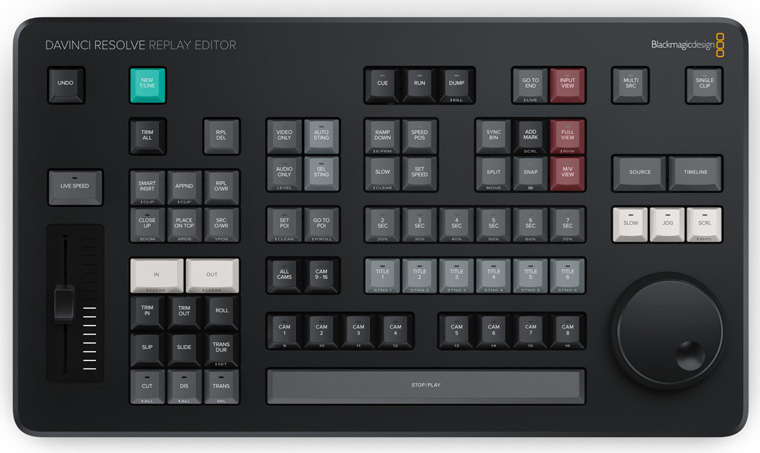
Las producciones en directo suelen emplear automatizaciones complejas para las transiciones animadas. Sin embargo, DaVinci Resolve incluye transiciones animadas automáticas que buscan agilizar estos procesos que pueden ser desplegadas al presionar los botones RUN y DUMP: se añadirá el canal alfa a la transición animada en la composición transmitida por la salida SDI del soporte físico.
Al presionar el botón RUN, se da inicio a la transición animada y luego se reproduce el clip. Por otro lado, el botón DUMP permite reproducir la transición animada nuevamente y, a continuación, detiene la reproducción. Esta función puede demorarse ligeramente si acaba de llevarse a cabo una edición; sin embargo, al presionar el botón dos veces, se detiene la reproducción de inmediato.
Did you like this article?
Subscribe to our NEWSLETTER and you won't miss anything.
Related articles
 Calvin implements the Blackmagic Replay system
 '1 For All' relies on Blackmagic Design and DaVinci Resolve cameras
 ‘Leonor will never die’, released with DaVinci Resolve (Blackmagic)
 Blackmagic Boosts Mac Support and RAW Processing in DaVinci Resolve Version 17.4
 'Gaey Wa'r', graded with Blackmagic Design's DaVinci Resolve Studio
 Blackmagic Design updates DaVinci Resolve to version 17.3
 ‘Chaogtu with Sarula’, edited with DaVinci Resolve by Blackmagic Design
 Blackmagic Design lanza DaVinci Resolve Speed Editor
 Oscar winner Claudio Miranda trusts DaVinci Resolve Studio and DaVinci Resolve Mini Panel from Blackmagic
 Blackmagic Design announces availability of DaVinci Resolve 14
 The Bernabéu launches Intel 360 Replay technology for 360º replays
 DaVinci Resolve and Fusion grow under Blackmagic DNA
 Blackmagic Design announces the release of DaVinci Resolve 10
 Blackmagic reveals the new DaVinci Resolve 8